
[Expired]Bambu Lab 4th Anniversary Sale
- Bambu Lab 4th Anniversary Sale: P2S/H2C first-ever price drop! P1S series starting at $499.
- Free shipping within the US.
- Offer ends July 15 at 11:59 PM.
- Buy more filament, save more >> 4 items 25% off, 6 items 30% off, 10 items 45% off!
- Buy >>
Bambu Lab's anniversary sale is here—grab these deals in 3 seconds! Want to print car parts, outdoor tools, or other durable, high-temperature functional items? Go straight for the P1S or P2S! This first-ever price drop is a no-brainer. The fully enclosed chassis lets you feed it tough engineering filaments with ease—truly the "performance ceiling" for budget-conscious users.
If you're a high-budget player or a studio pro looking to print with multiple heads simultaneously, avoid filament waste, and double your efficiency? Then go all in on the X2D or H2C. With multiple print heads firing at full power, say goodbye to wasteful multi-color filament changes. This ultimate "money printer" will supercharge your productivity!
 Buy
Buy Buy
Buy Buy
Buy Buy
Buy
| Recommended Model | Features |
 $699 (First Price Drop!) | For advanced users: enclosed single-nozzle printing
|
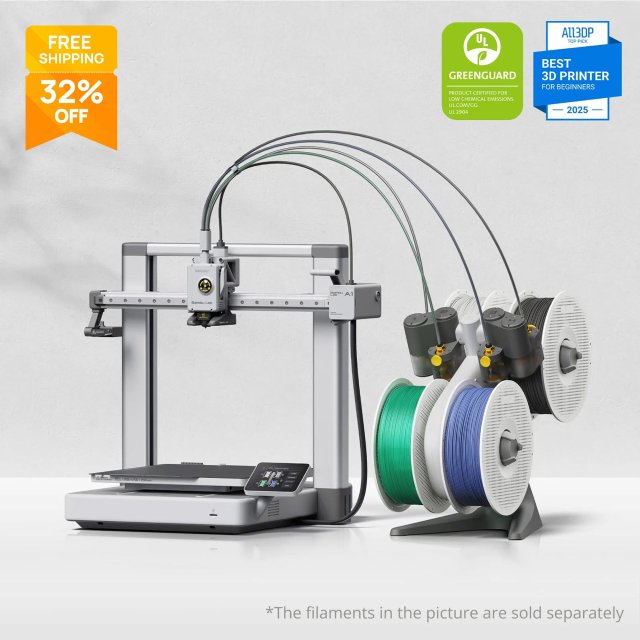 $379 (was $599) | Beginner-friendly, easy entry into 3D printing
|
 $2,149 (First Price Drop!) | For hardcore multi-color printing and material-saving enthusiasts
|
 $899 (New) | New tech, dual-nozzle at a more accessible price
|
 $569 (New) | Launched in June, designed for larger creative projects
|
Merchant reminder:
a. Payment information: Orders on the website are settled in US dollars. Multiple payment methods are accepted, including Alipay, Klarna, Visa, Mastercard, American Express, and PayPal.
b. Shipping information: Free shipping is included. Generally, orders are shipped within 1-3 business days. For details, please refer to the website's shipping policy👉
https://us.store.bambulab.com/policies/shipping-policy
How to assemble the Bambu Lab A1 Combo
// Assembling the Bambu Lab A1 Combo //
If you're feeling a little tempted to buy one after reading this, let's first assemble my A1 Combo together with Mashao, because it's actually a bit complicated. Watch this once and you'll get the hang of it. Then you can save this guide and refer to it along with the manual when your own unit arrives!

The package arrived as one big box. The future printer and AMS feeder will both sit on this little white IKEA table.

The first layer after unboxing. The gray one is the print bed. Be careful when opening the box, don't just slice it open recklessly. The white one is the instruction manual set.

The next layer down. The four round ones are the spindles for the AMS feeder. The V-shaped one is the AMS feeder base. On the other side of this foam are accessories like the power cable. Take them out separately and set the foam aside.

This is the printer's gantry. Take it out and lay it flat, but don't place the side wrapped in paper/cardboard facing down. That side has the print head's slide rod.
Next is the bottom-most layer. Just take everything out in order (nothing special to note, forgot to take a photo).

From left to right: Printer base, filament tube and white filament spool, filament spool holder for the gantry, the AMS feeder body (the one with two long rods and a dark gray object), the print bed in a plastic bag, the gantry, the print head (white with four black dots) hanging on the gantry, AMS base, four spindles.

The instruction manual pack. Inside, only the manual is needed, follow it step by step. There is no Chinese manual.

First, use the Allen key/L-shaped wrench from the manual pack to remove the limiters on the gantry. Also remove all the zip ties and cardboard from the gantry and base.

Align the print bed with the top ports and accurately attach it to the printer base.
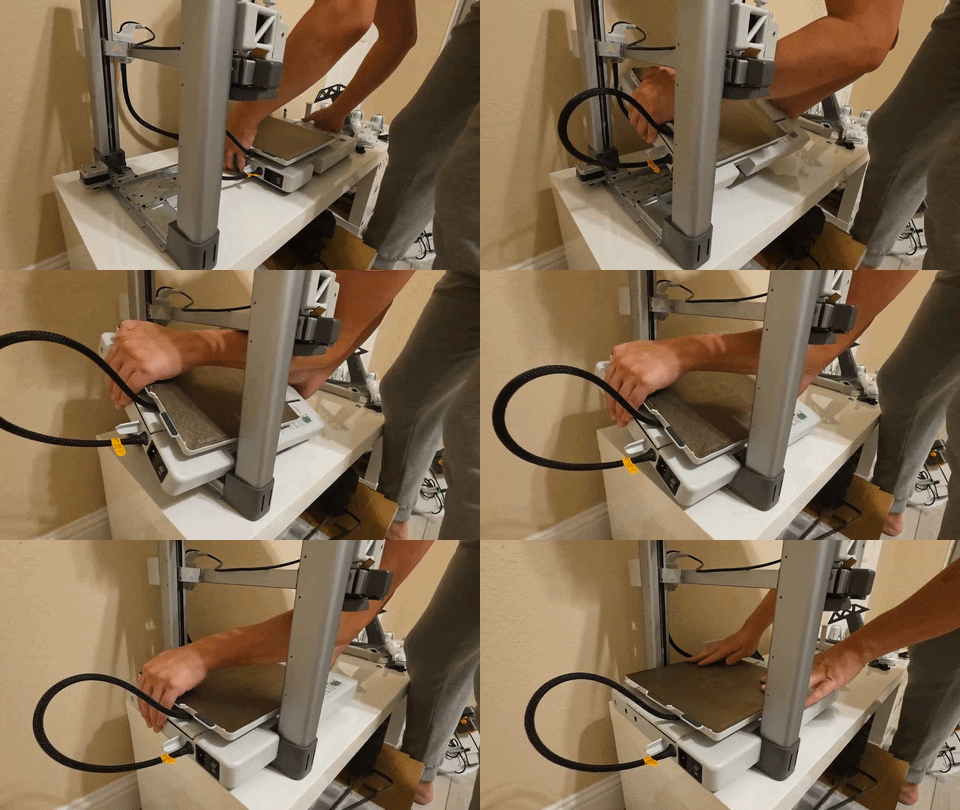
Nest the base into the gantry as shown in the picture. There is a notch on each side, and it will align perfectly.
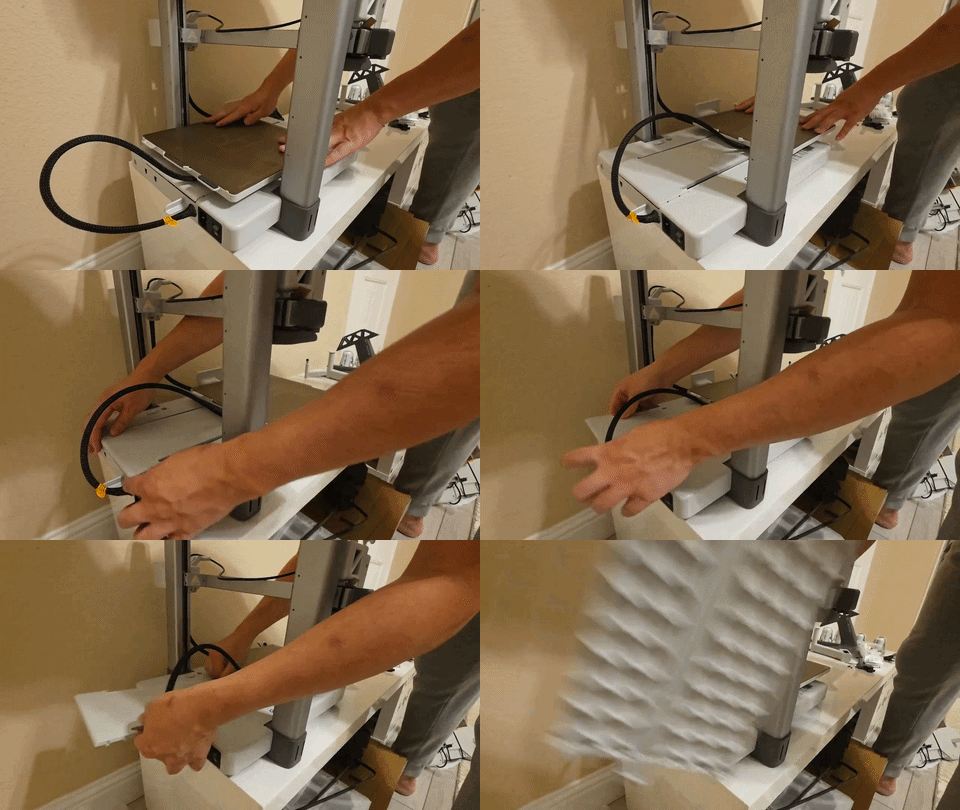
Push the print bed to the end opposite the power port, then pull out the cover plate inside the base. Looking back inside, you'll see several screw holes marked with green circles.

According to the screw types specified in the manual, find the corresponding parts bag (the parts bag packaging indicates what it's for). There will be spare parts left over after using the parts bag. After everything is assembled, you'll find there are still unused parts; these are for future replacement of accessories. Keep them safe.


Use the L-shaped wrench from earlier to install all the screws. There are 10 on the tail side and 2 on the head side in total. Remember to slide the print base to see them. After installing them all, put the cover plate you removed back on.

Lay the printer down like this, and we're ready to install the base wiring.

This cable comes from the print head. Insert the whole thing into the base through the gap underneath. There are three cables. First, we need to insert the USB-C cable. It's not very easy to insert; you'll feel a "click" when it's in. The other two cables have specific ports; just insert them accurately according to the foolproof design.
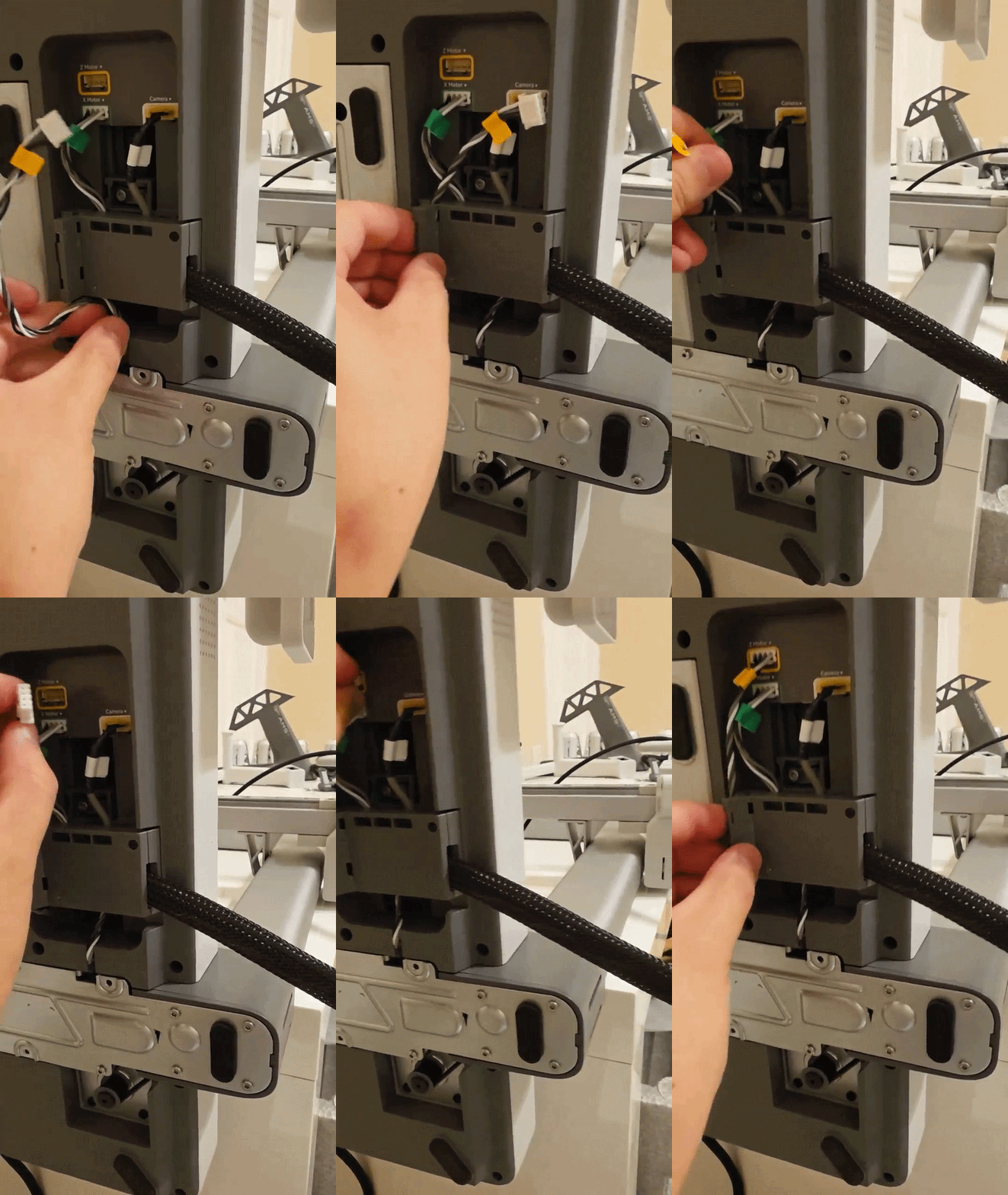
Then, we'll find a cable taped to the bottom edge. Remove the tape, route this cable along the hidden groove in the box we just inserted, and plug in the last separate connector. After everything is plugged in, we can stand the printer upright.
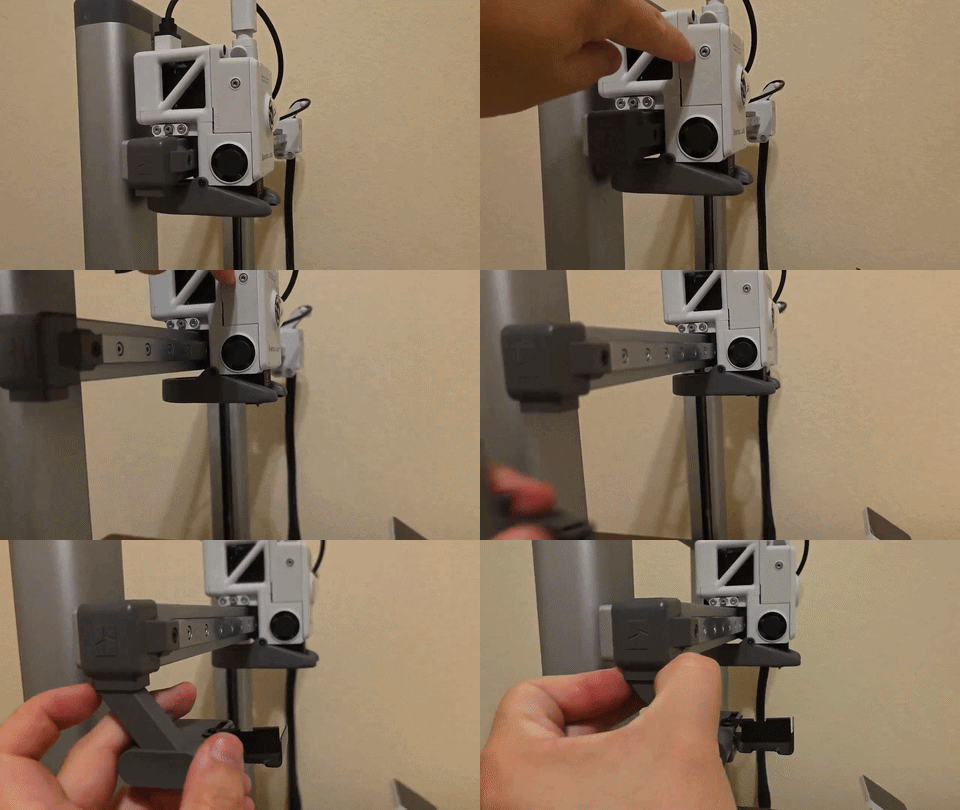
Push the print head to the middle and install the poop knife. This is because during printing, the nozzle produces a lot of waste material, and this tool is needed to cut it off. The cut-off material falls to the ground. This waste is affectionately called "poop." Poop can be used to fill the base of some printed objects to add weight, and some people grind it into powder and remelt it into filament.
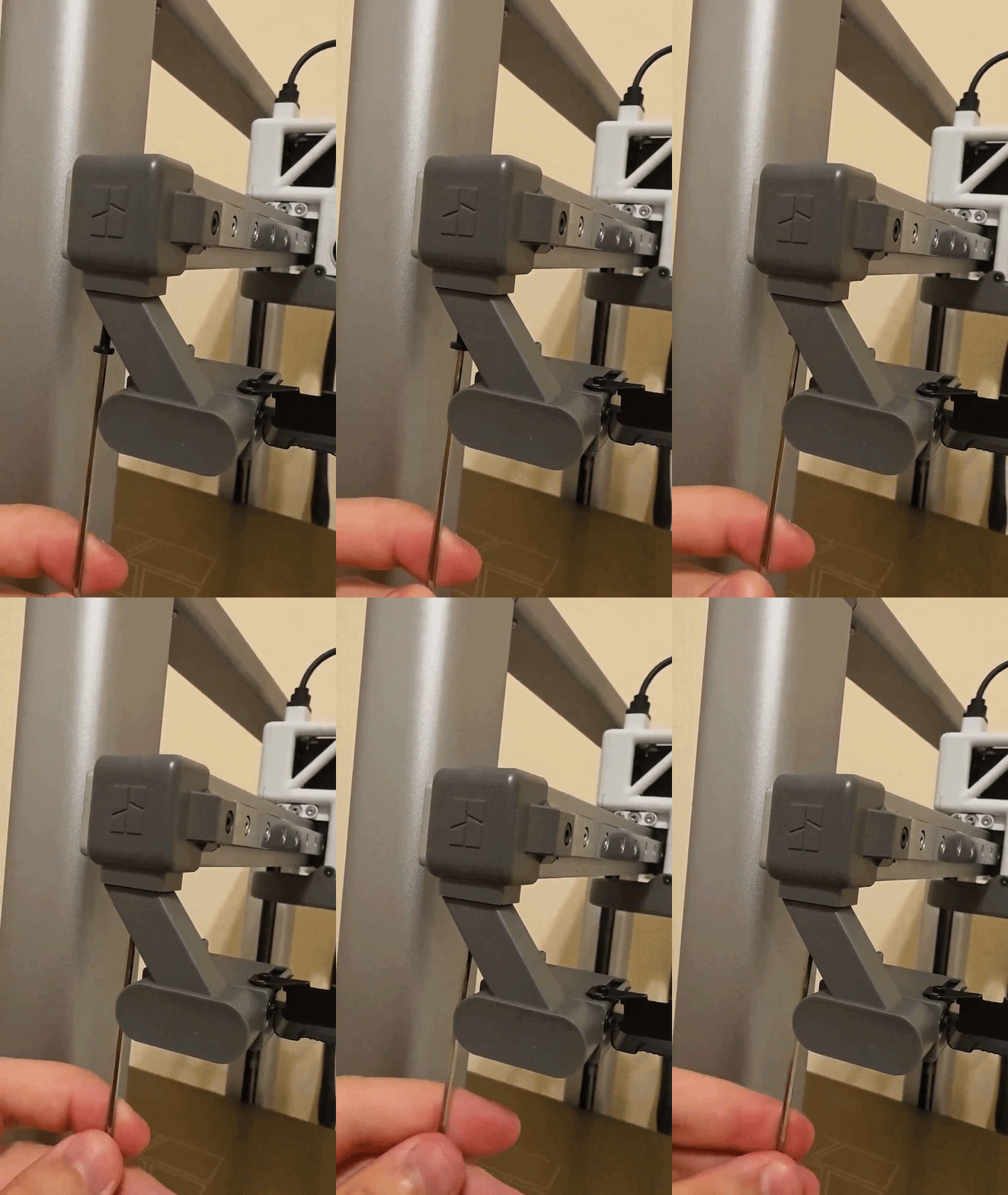
This step is to screw a screw into the poop knife. As long as you've installed it in the correct position, it will screw in.

For the AMS feeder, there are two screws on each side of the base and the body. Install them according to the required part types specified in the manual.

Spindles. There are four in total, two green and two yellow. The AMS has four posts, two green and two yellow. Install green to green, yellow to yellow. Make sure to push them all the way down. To remove, just pull directly; there are no other locking mechanisms.

Next, you can arrange the printer and feeder like this. The feeder should be placed about 50cm away from one side of the printer. The purpose is to give the filament enough distance so it doesn't get damaged.


Deals and coupons you may like

Fiskars 10-Inch Easy Action Bent Handle Titanium Craft Scissors $14.97

New Markdowns: Stanley Sale Up to 60% Off


AliExpress Back-to-School Sale: Ergonomic Chairs from $33 Insta360 X5 Available at $430

Costco Instant saving Aug 24 to Sep 20

woot! New Customers Sale $10 off

Panasonic CR2032 3.0V Long Lasting Lithium Coin Cell Batteries 10 Pack $6.49$6.99

L LOHAS LED LLOHASLED Motion Sensor Plug-in Night Light 30/60LM 3000K 2-Pack $6.99$15.99

Stock Your Home Kraft Sandwich Bags 125 Pack Food Grade Compostable with White Sealing Stickers $5.99$11.79

Mibao Heavy Duty Front Door Mat 29.5"x17" Stain Resistant NonSlip $7.49$14.99

Tide PODS 3-in-1 Laundry Detergent Pacs 112 Count 4 For $60.51

GroTheory 2 Pack Door Draft Stopper Weather Stripping Seal $3.99$9.99

Disfore Long Household Cleaning Gloves 2 Pairs $4.99$6.99

Kleenex Trusted Care Facial Tissues, 8 Flat Boxes, 200 Tissues per Box $10.37$20.99

Teivio Small Trash Bags 2.6 Gallon 170 Count Strong Leak-Proof Can Liners $4.79$8.22

Clorox Disinfecting Wipes Variety Pack 75 Count Each Pack of 3 $6.65$14.99

ETENWOLF 15-Pack Vacuum Storage Bags with Wireless Pump $13.00$37.99

LUMI Lemmy Absorbent Non Slip Bathroom Rug 24"x34.5" $9.99$39.99
Amazon Home, Baby, Health Care, and Beauty Products Sale Buy $50, Save $15


New Markdowns: Deeyeo On-the-Go Flushable Unscented Wipes 99% Purified Water Sensitive Skin Safe 24 Pack 168 Wipes $19.19$23.99

MrsAwesome Clear Shower Curtain Liner 3 Magnets 72x72 Inch $4.55$7.99


eBay Official Refurbished Power Bank EcoFlow: 30% Off Storewide From $128

Costco New Members get $40 shop card

Amazon Haul Best Sellers As Low as $1

Thermacell EZoneGuard Glow Mosquito Repellent Lantern LED 9Hr Battery $24.00$59.99


Kohl’s Cash Ultimate Giveaway

OuMuaMua Crystal Christmas Tree Ornaments Clear Acrylic Snowflake & Icicle 18pcs $7.99$14.99

Eastfox Portable Waist & Neck Clip-On Fan with LED Display, 100 Speeds $9.99$21.99

Viva Signature Cloth Paper Towels 12 Family Triple Rolls 141 Sheets per Roll $29.84$52.46

One-Year BJ's Inner Circle Membership $10.00$60.00

Stanley US Tailgate Season Outdoor Gear Sale Starting from $20

Target Top Deal 8/16-8/22

EZPIK Pro 36-Inch Flexible Folding Reacher Tool with Magnetic Rotating Heavy Duty Gripper $27.95$33.95

HERO Travel Supply Large Microfiber Beach Towel Compact for Travel 40" x 72" $27.96$34.95

Takeya Motivational Water Bottle with Straw Lid and Time Marker 64 oz, Cloud White $9.99$19.99


IKEA Kitchen & Daily Essentials Spice jar $1

ZIMPLEWARE Premium Disposable Round Plastic Tablecloth 84in 12 Pack $21.24$24.99

Owala FreeSip Stainless Steel Water Bottle 32 oz $27.99$34.99
Fiskars 10-Inch Easy Action Bent Handle Titanium Craft Scissors $14.97
问大家
: Is there any difference between the P1S and P2S? Are the consumables also the same? P1s和p2s他们两有什么区别吗?耗材也都是一样的吗?
: P2S is a comprehensive iterative upgrade over P1S, with specific differences as follows: P2S features upgraded servo motors and an active temperature control system, supports high-speed/quick-release nozzles, and uses a large color touchscreen for interaction, along with a built-in 1080p AI camera. It also offers better overall build quality and noise control. P2S 是 P1S 的全面迭代升级版,具体区别如下:P2S 升级了伺服电机与主动温控系统,支持高速/快拆喷嘴,交互上换用了大尺寸彩色触摸屏并内置了 1080p AI 摄像头,整体质感和噪音控制更佳。
: But the P1S is more than enough for beginners... You can ask ChatGPT; it seems the feedback on the P2S isn't as good, and the P1S is more stable. 但是P1S给新手够用了…你可以问chatgpt,好像P2S的反馈并没那么好,P1S稳一些.
: Which is better, x2d or p2s? x2d和p2s哪个好?
: There is no absolute winner between these two; it mainly depends on whether you need dual nozzles and the ability to print with engineering materials. If you're after dual-color printing, easy-to-remove supports, or frequently print ABS/nylon, go with the X2D. If you're on a budget, mainly printing PLA/TPU, and prioritize stability, the P2S offers better value for money. 这俩无绝对优劣,主要取决于是否需要双喷头与工程材料打印能力,如果追求双色打印、易拆支撑或高频打印ABS/尼龙,选 X2D,如果预算有限、主要打印PLA/TPU 且求稳,P2S 性价比更高
回复 @修仙否 : Thank you. That's very detailed. 谢谢。好详细。
: Does this thing release any harmful gases during the printing process? 这玩意打印过程中会释放有害气体吗
: Buy a filter or print one yourself. For general issues, it's not a big deal. Printing with carbon fiber or ABS requires a specialized filtration system, which you can set up on your own. 买个filter或者自己打印一个,一般的问题不大打碳纤维的或者abs就要专门的过滤系统了,可以自己打
: Based on the materials, PLA is not toxic, but ABS and ASA are. 看材料,PLA这种不会,ABS和ASA有毒
: Got the P2S. Wondering if it's necessary to route the exhaust outside the window? Is PLA Pure the most non-toxic filament? 入了p2s。不知道有没有必要接外排去窗外呢?PLA pure是不是最无毒的耗材?
: PLA Pure is currently one of the most transparent and most certified FDM filaments available. However, there is no absolutely non-toxic filament, so it still needs to be used in a well-ventilated environment. PLA Pure 是目前成分最透明、认证最全的 FDM 耗材之一了,但是没有绝对无毒的耗材,还是需在通风环境下用
: Beginner here, should I buy the P1S AMS Combo or the AMS 2 Pro Combo? 新手入门,买p1s ams combo还是ams 2 pro combo?
: The AMS2 can be dried, so I think I'll go with the 2. ams2可以干燥,我觉得还是2吧
: May I ask what A1 and A2 refer to respectively?![[感谢]](/assets/emoji/comment-emoji/dm_ganxie@2x.png?v=1) 请问各位大能A1和A2分别是什么?感谢
请问各位大能A1和A2分别是什么?感谢
: The A2L is an advanced model designed for large-scale (330×320×325mm) multi-modal creation, featuring "printing + cutting + drawing" capabilities, while the A1 series is a standard-sized (256mm or 180mm) entry-level pure 3D printing model. A2L 是主打大尺寸(330×320×325mm)及“打印 + 切割 + 绘画”多模态创作的进阶机型,而 A1 系列是标准尺寸(256mm 或 180mm)的纯 3D 打印入门机型
: Just asking, how do you scan and copy the desired object? 不懂就问,怎样扫描复制需要的物件呢?
: You can download other people's templates online. 网上可以下载到别人的模版
: Does this have platform resources? The one I bought before had so few resources that I couldn't craft anything. 這個有沒有平台的資源? 我之前買的那個資源少什麼都打不出來。
: You can download the Bambu Handy app. There's a lot inside. 你可以下载bambu handy 这个app 里面很多
: Want to get started. Can anyone tell me which model a beginner should choose for making toys or everyday items, and what the initial budget should be? 想入手,有没有人告知一下新手入门就打一些玩具或者日常用品之类,入门选哪款,初次费用预算多少?
: A1 mini is enough. If you’re just in it for a short burst of enthusiasm, I’d suggest searching for 3D printing farm services near you—they can print for you, and they usually charge by the kilogram of material used. If you’re only printing things others have made for fun and don’t have your own fixed needs, chances are it’ll end up collecting dust after a month or two. A1 mini 就够了,如果只是三分钟热度,那么建议直接搜索你周边的3d 打印农场服务,他们能够代打,一般按用了多少千克的材料收费。 如果只是打别人做的东西玩,没有自己的固定需求的,那么大概率是用了一两个月后直接吃灰的。
: Is this A1 series model capable of automatically switching colors during the printing process? 请问A1系列的这种是打印过程中也能自动换色的吗?
: I want to buy the multi-color kit. 要买多色的那个套件。
最新评论 209
: I've always wanted to buy a 3D printer to print some fun little toys. 一直想买个3D打印机,可以打印些喜欢的小玩具
: Hope I can win the lottery, and if I do, I'll buy the X2D when the price drops. 希望能中奖,中了就买X2D降价入手
: Finally placed the order, deliberately didn't buy any consumables, hoping to get picked!![[呲牙]](/assets/emoji/comment-emoji/dm_ciya@2x.png?v=1) 终于下单了,特地没有买耗材,希望可以被抽到!
终于下单了,特地没有买耗材,希望可以被抽到!![[呲牙]](/assets/emoji/comment-emoji/dm_ciya@2x.png?v=1)
: I was planning to buy supplies today, but when I selected 10 rolls, you had raised the price by 30 from yesterday.![[生气]](/assets/emoji/comment-emoji/dm_shengqi@2x.png?v=1) 本想今天买耗材 结果选10卷你昨天涨了30
本想今天买耗材 结果选10卷你昨天涨了30![[生气]](/assets/emoji/comment-emoji/dm_shengqi@2x.png?v=1)
: I was thinking of buying the P2S today, but the price went up. It's now 749. 还想今天买p2s呢,结果涨价了,现在749了
: Has the price gone up? Didn't they say it ends tonight? 涨价了吗?不是说到今晚才结束吗?
: Ordered the P2S and some filament, hope they work well. 下单了p2s和一些filament 希望好用
: I placed an order for the P1S AMS 2 Pro Combo and 10 rolls of filament, hoping to enjoy this big toy with my daughter. 下单了p1s AMS 2 pro combo和10卷耗材,希望能和女儿一起享受这个大玩具
: Got the P2S! Hope I win the lottery, haha. Is PLA pure the most non-toxic filament? 入了p2s!希望能中奖哈哈。PLA pure是不是最无毒的耗材?
: Got the P2S. Wondering if it's necessary to route the exhaust outside the window? Is PLA Pure the most non-toxic filament? 入了p2s。不知道有没有必要接外排去窗外呢?PLA pure是不是最无毒的耗材?
: PLA Pure is currently one of the most transparent and most certified FDM filaments available. However, there is no absolutely non-toxic filament, so it still needs to be used in a well-ventilated environment. PLA Pure 是目前成分最透明、认证最全的 FDM 耗材之一了,但是没有绝对无毒的耗材,还是需在通风环境下用
: I've always wanted to give it a try, hoping to print some fun little toys I like![[比心]](/assets/emoji/comment-emoji/dm_bixin@2x.png?v=1) 一直想试试,希望能打印喜欢的小玩具
一直想试试,希望能打印喜欢的小玩具![[比心]](/assets/emoji/comment-emoji/dm_bixin@2x.png?v=1)
: Haven't used this 3D printer yet 🖨️ 还没用过这个3d打印机🖨️
: Waiting for the X2D price to drop before buying, hope I win the lottery! 坐等X2D降价入手,希望能中奖!
: Ordered again! Time to get creative this time~ 又下单了!这回继续整活~
: I've been following P1S for a long time. This 4th anniversary sale starts at just $499, and the price drop is very sincere—ready to buy! 关注P1S很久了,这次四周年促销只要499刀起,降价很有诚意,准备入手
: I placed two orders, bought the machine and then picked colors and parts. There are so many colors, I can't buy enough haha😂! 下了两单,买了机器又挑颜色和零件,太多颜色了买不够啊哈哈😂!
: 种草 超级心动 种草种草 超级心动
: Beginner here, should I buy the P1S AMS Combo or the AMS 2 Pro Combo? 新手入门,买p1s ams combo还是ams 2 pro combo?
: The AMS2 can be dried, so I think I'll go with the 2. ams2可以干燥,我觉得还是2吧
: I've always wanted to try it. Taking this opportunity to let the kid, who's bored during summer break, have some fun with it. Hope it can print his favorite Pokemon![[偷笑]](/assets/emoji/comment-emoji/dm_touxiao@2x.png?v=1) 一直想试试,趁着机会给暑假太无聊的小朋友玩玩,希望能打印他喜欢的Pokemon
一直想试试,趁着机会给暑假太无聊的小朋友玩玩,希望能打印他喜欢的Pokemon![[偷笑]](/assets/emoji/comment-emoji/dm_touxiao@2x.png?v=1)
: But just a few months ago, I bought the one in the first picture for $649![[捂脸哭]](/assets/emoji/comment-emoji/dm_wulianku@2x.png?v=1) 不过几个月前 图一$649买的
不过几个月前 图一$649买的![[捂脸哭]](/assets/emoji/comment-emoji/dm_wulianku@2x.png?v=1)